Receiver setup
Check the power supply, source selection and receiver settings before you begin listening.
Independent receiver guidance
Get your receiver ready, locate its Radio ID and work through common reception issues with clear guidance from IT Digi Connects.
Start setup guideIndependent information only. We do not activate subscriptions or represent SiriusXM or any satellite radio provider.
Before you start
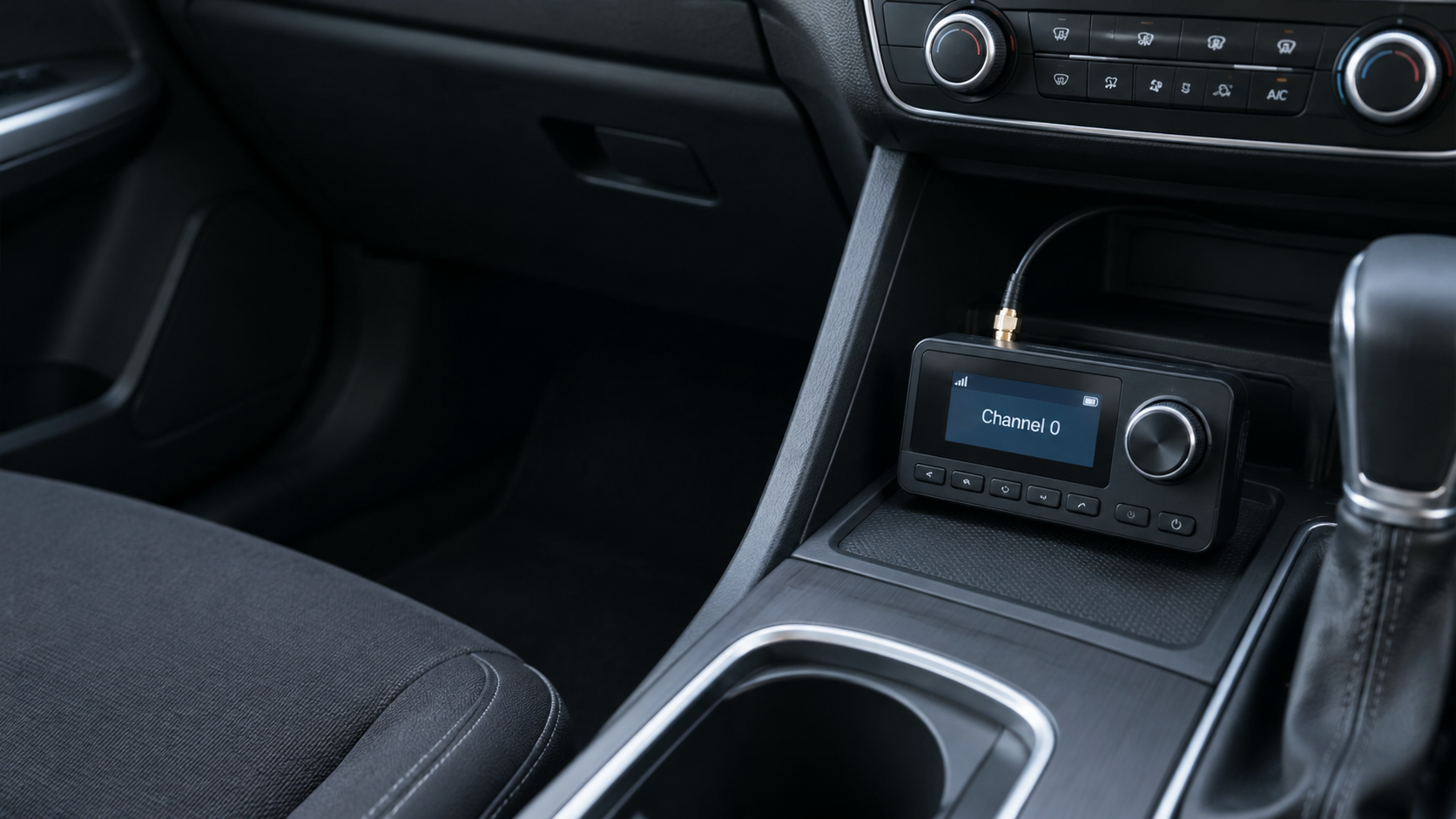
On many receivers, tuning to Channel 0 displays the Radio ID or ESN. If it does not appear, check the receiver's information menu, its label or your vehicle manual.
Your Radio ID stays on this page and is not sent to us. This guide does not check account eligibility, verify your device or request payment.
Start with the hardware and signal checks that can resolve common listening interruptions.
Check the power supply, source selection and receiver settings before you begin listening.
Inspect the antenna cable and dock connection, then choose an unobstructed antenna position.
Work through common no-signal and antenna messages without changing your subscription.
Find out what to have ready when requesting a signal refresh through your provider's official service.
The receiver may not have an active subscription or may need a signal refresh. Check your account and channel package with your official provider before changing device settings.
Move to an open location when it is safe to do so. Garages, tunnels and overhead obstructions can block reception. If the problem continues outdoors, inspect the antenna and cable.
No. These pages provide independent setup information. Subscription activation, billing changes and provider signal refreshes must be completed through your official provider.
Review the checklist before contacting your service provider.